Perform document tasks simply and comfortably
DocuWorks 10 - The fusion of digital and paper
DocuWorks is document handling software indispensable to daily tasks. With over 10 million licences sold worldwide, this software is trusted by many customers across diverse industries and business operations.
DocuWorks 10 bundles functions that were conventionally options in a compact "all-in-one" package. Features an intuitive user interface and significantly enhanced key functions.
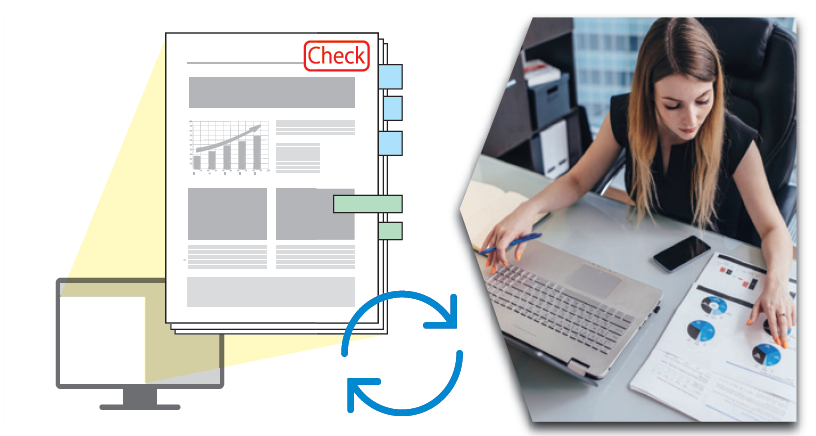
Provides the clarity of paper documents for a variety of document tasks, such as collecting information, viewing and editing documents, and sharing information among a team. DocuWorks 10 offers simplicity and comfort for beginners and experts alike.
Introducing the new features of DocuWorks 10
DocuWorks 10 introduces new features for handling documents more comfortably, supporting document work from desktop, cloud, mobile and multifunction device workflows.
Features
Trustworthy Tools -- Decisive Factor for Simplification
Your everyday work made simple. Task Toolbar can be used to standardise the tasks that you perform regularly, making work more efficient. DocuWorks Tray allows documents to be easily transferred and information to be shared.
Task Toolbar for standardising task procedures
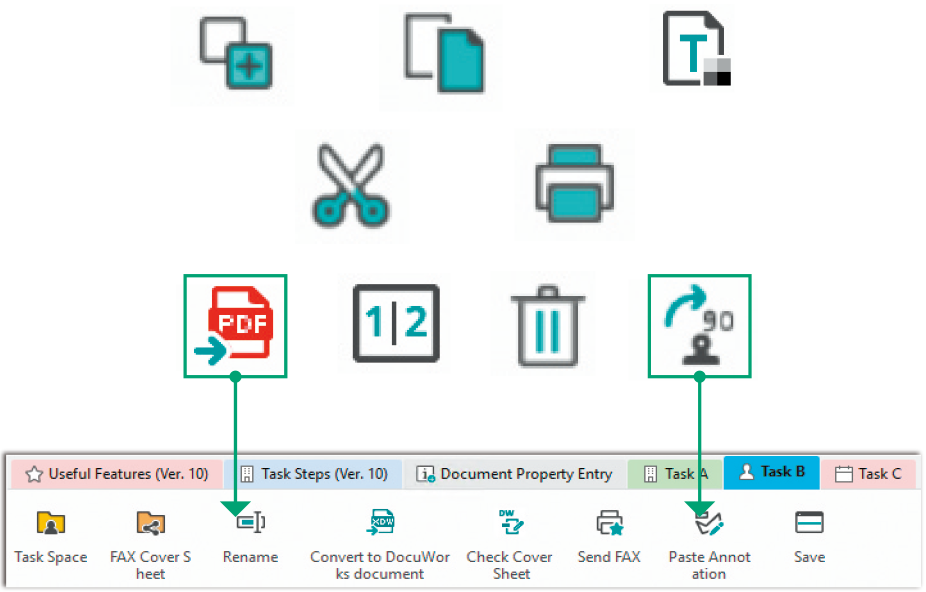
Streamline standard work by registering frequently-used functions and task procedures to the Task Toolbar. The customised Task Toolbar can be placed at the bottom of the DocuWorks Desk screen and shared with all team members.
Convenient user interface
Tab colour and size can be customised for each task or operation, making it easy and straightforward to use.
Improved work efficiency of standard tasks
Register icons according to the flow of work. Performing operations in the order of the icons in Task Toolbar eliminates operational errors and helps streamline standard tasks.
Note: Up to 30 tabs can be registered.
Task progress comprehended
A mark is left on the icon of the job that was implemented last, so users can work concurrently on multiple tasks and understand the progress made on each.
Shared workflows
Task Toolbar settings can be exported and imported. By sharing settings with your team, tasks can be carried out with the same flow even if the person in charge changes.
Task Toolbar customisation
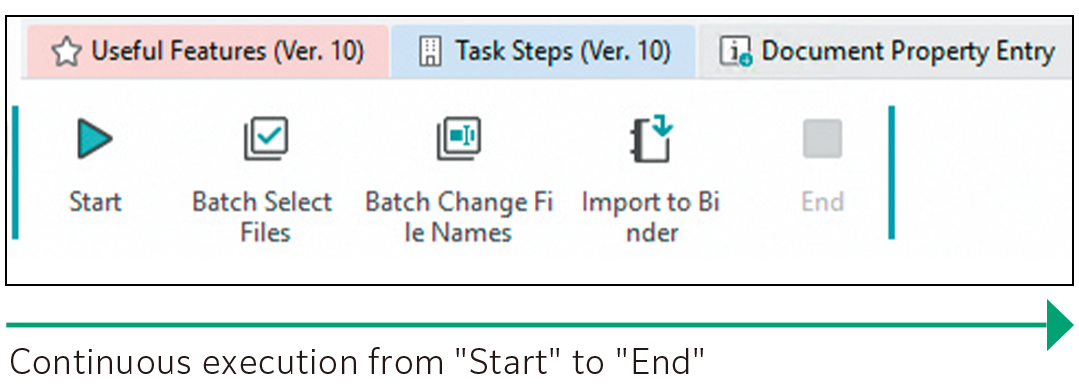
Customise Task Toolbar by dragging and dropping icons for each individual task.[Recommended] Continuous execution of routine tasks
Daily operations can be executed with a simple button operation, allowing multiple documents that match conditions to be grouped and processed in a batch.
Select documents that have been updated within the time period
Add the date to the beginning of the file name
Combine in a binder
[TOPICS] Equipped with many useful functions frequently used while working
Date stamps can be stamped at predetermined locations, useful for approval stamps on standardised forms.Open and edit templates created in Word or Excel to generate DocuWorks files.Scanned documents that are tilted can be corrected at the touch of a button.OCR processing can output recognised text to Word, Excel, text documents and more.
DocuWorks Tray - streamlining document transfer
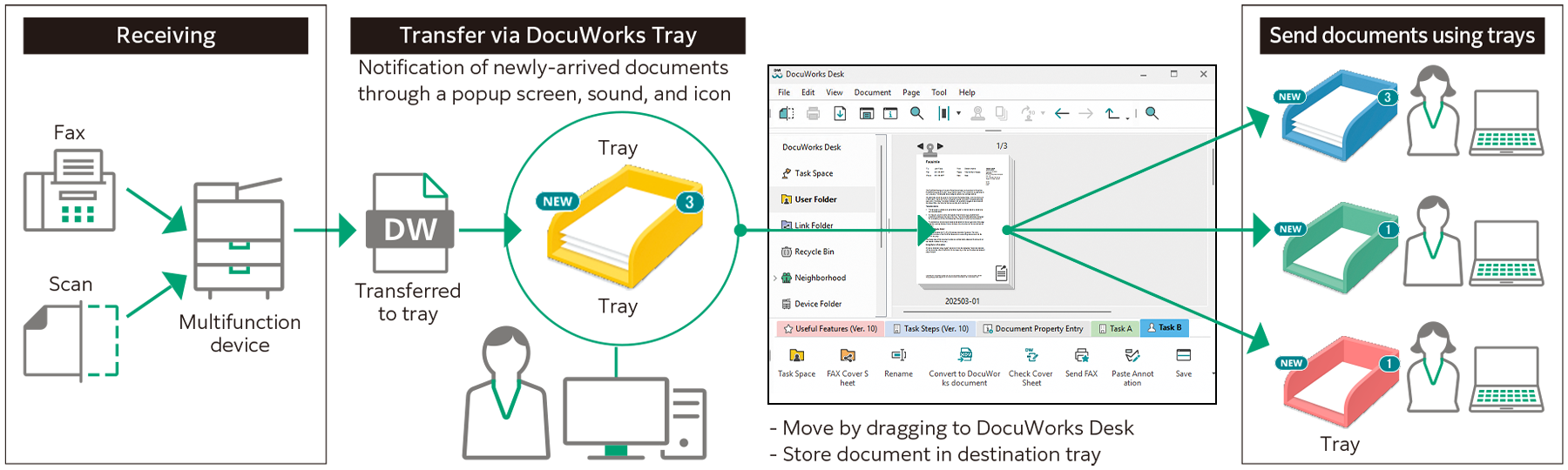
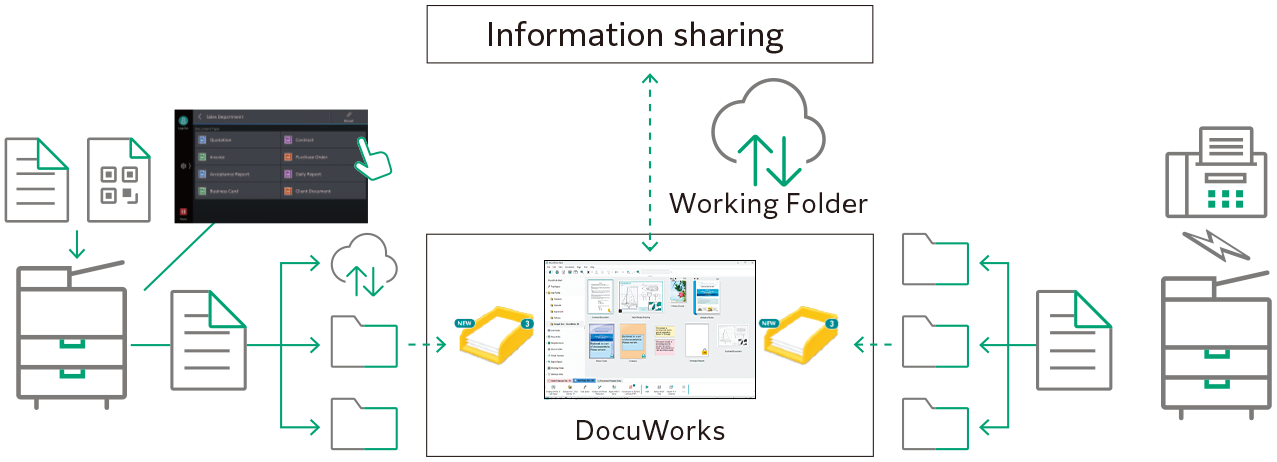
Faxed or scanned documents can be imported from the multifunction device to DocuWorks Desk via the tray. You can also share documents with others simply by placing the document in the tray.
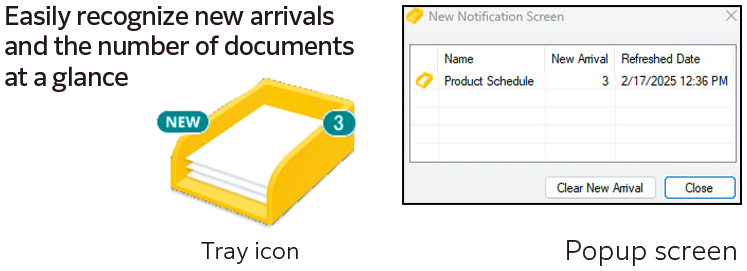
Transfer of paper documents using a tray was reproduced in a PC environment. Icons and pop-up notifications announce newly arrived documents, making them harder to overlook.
Forward received fax documents directly to DocuWorks
Fax documents received/paper documents scanned via a FUJIFILM Business Innovation multifunction device are automatically forwarded to DocuWorks on your PC. By also using "DocuWorks Tray" that allows for transfer of documents as though placing a paper document on a tray, it is possible to visually see that you have received a document.
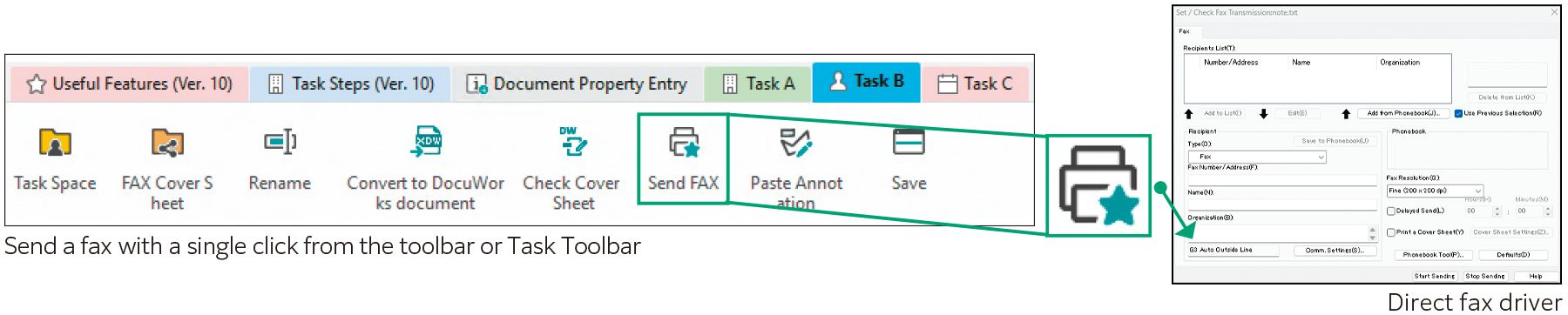
Send a fax directly from DocuWorks
You can send a fax directly from DocuWorks Desk without going to the fax machine or printing out a document, helping save paper.
[Recommended] Convenient use for collaborative editing by multiple people
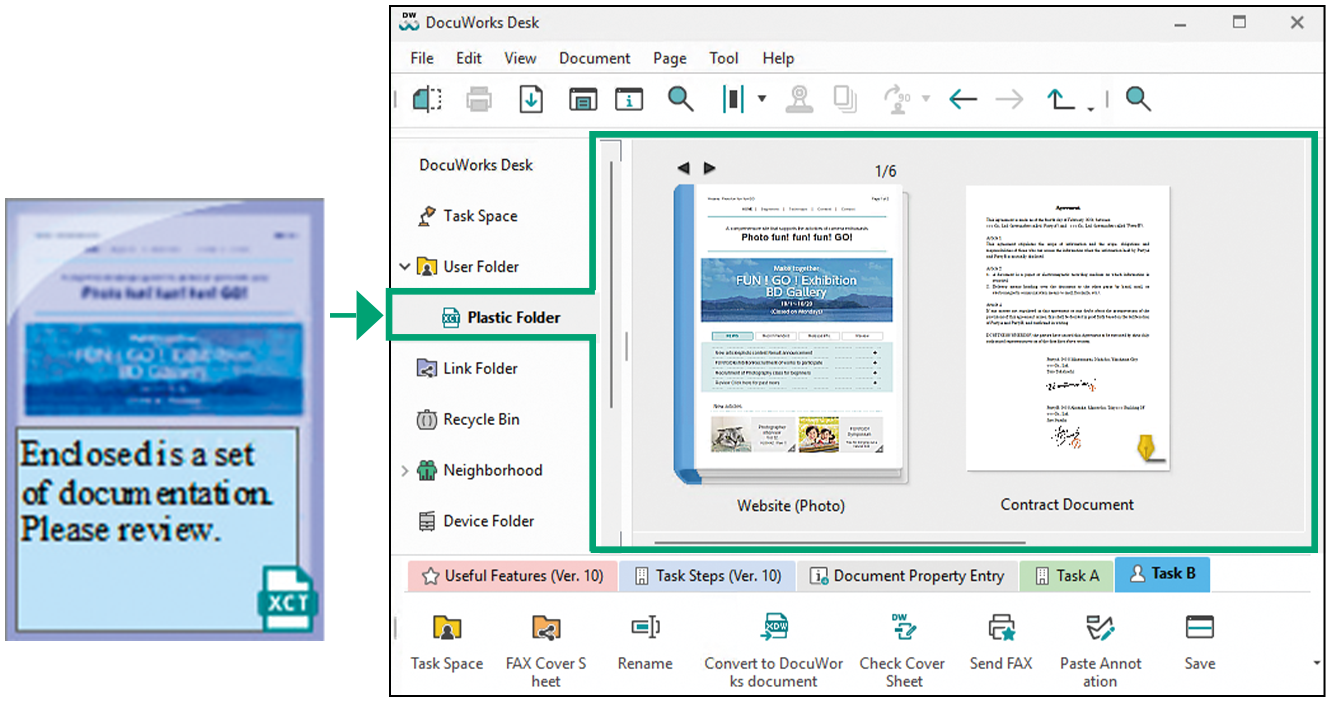
Transfer documents in various formats
By using "Clear Folder" and "Envelope", you can store and manage documents in various formats, including Word and Excel files. When collaborating with multiple people, documents can be placed in a "Container" and shared in a tray, allowing editing to be resumed seamlessly. The "Container" can be expanded in DocuWorks Desk like a user folder, enabling efficient work while using the Task Toolbar.
Register/search for document attributes
With DocuWorks, documents stored in the cloud can be handled as intuitively as paper. Share documents easily, anytime and anywhere.
Easily register attributes while viewing a document. Work is streamlined because documents can be searched using registered attribute information, including through Task Toolbar buttons.
Attribute registration for DocuWorks documents and PDFs
Attribute values such as customer name and delivery date can be registered in DocuWorks documents and PDFs. Users can also specify an area with the mouse and use OCR results as the attribute value to reduce manual input.
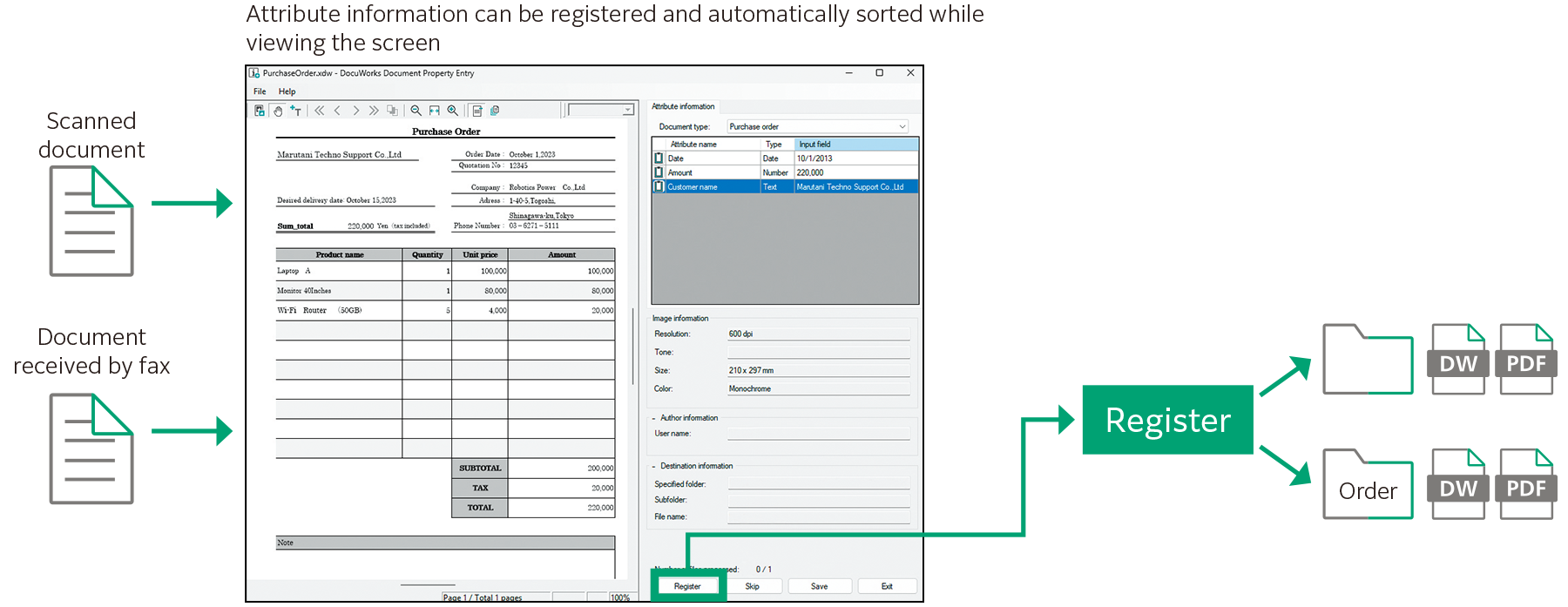
Attribute-based sorting/registration
Sorting rules can be set up to sort by attributes during registration. Two destinations can be set from folders, trays and more.Search and filter documents by attribute values
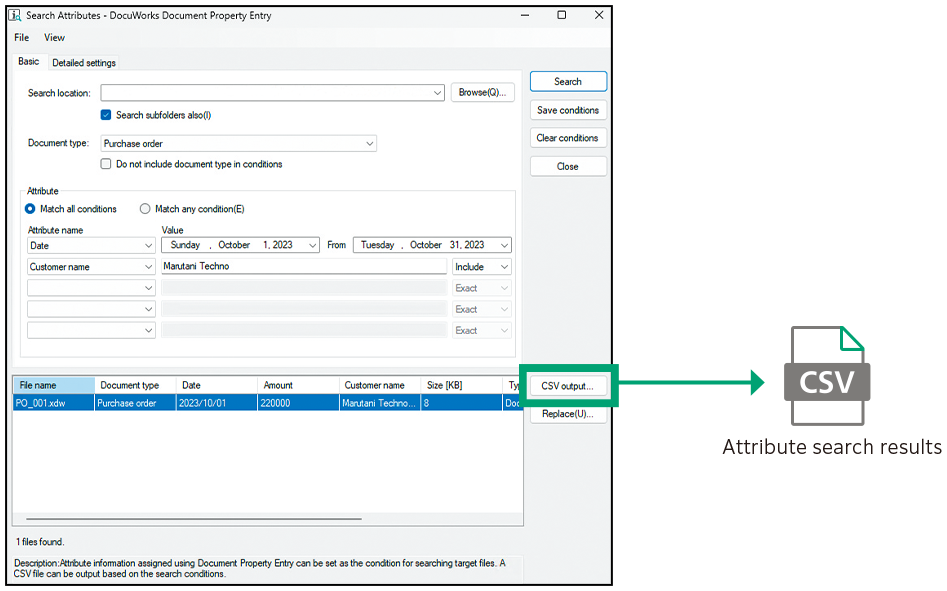
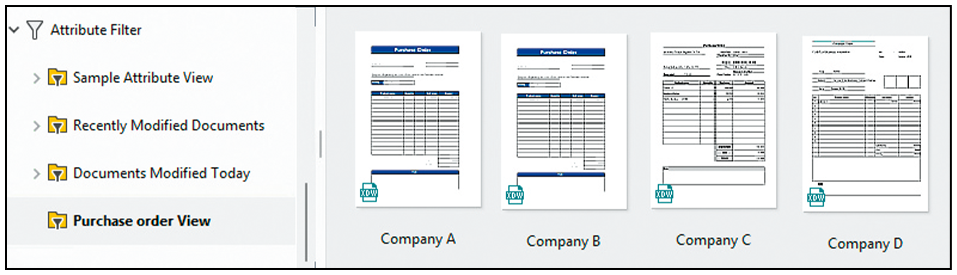
Files can be filtered by attribute values and output to CSV for use as management ledger source data.Display documents matching conditions
Use Attribute View to efficiently display only documents that meet your criteria.
Simplification
With DocuWorks, documents stored in the cloud can be handled as intuitively as paper. Share documents easily, anytime, anywhere.
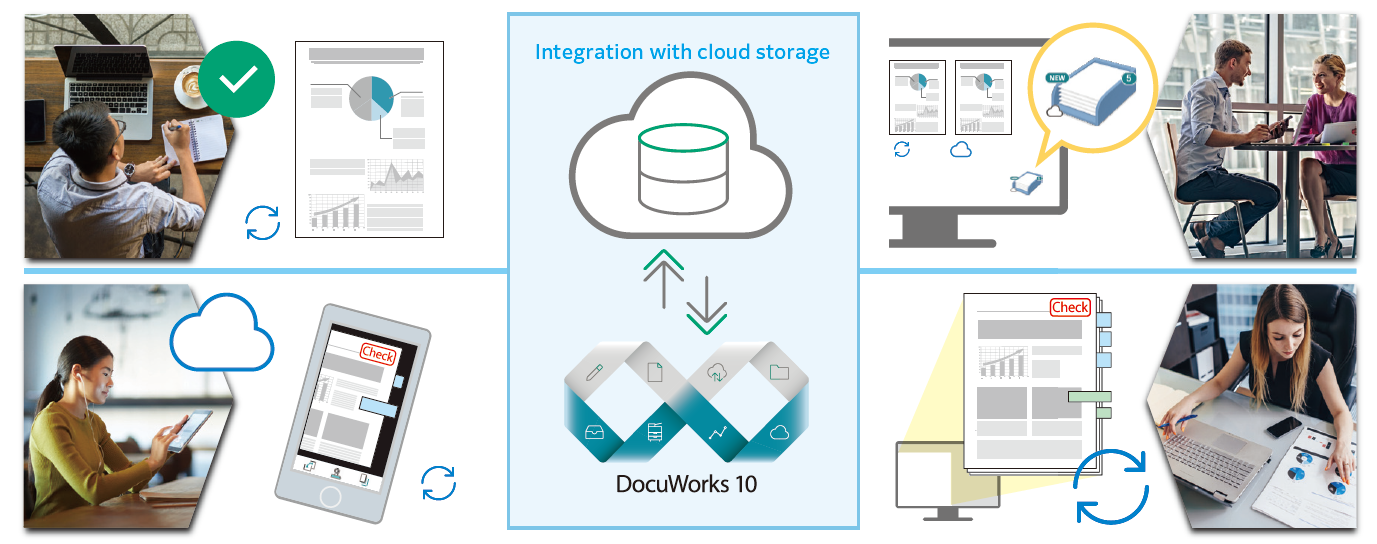
Smarter cloud integration
Cloud-Synced Folder*1
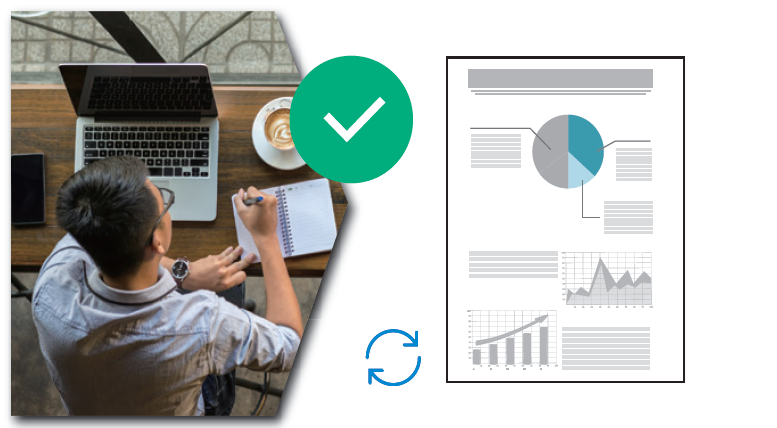
Work directly with documents saved in the cloud. Add sticky notes and stamps, bundle or separate documents, and use the task toolbar - all through simple, intuitive operations.Cloud-Synced Tray*1
Simply drag and drop to easily send and receive documents via cloud storage. New documents are announced by icons, pop-ups, and sound notifications, so you never miss anything.Mobile integration*2
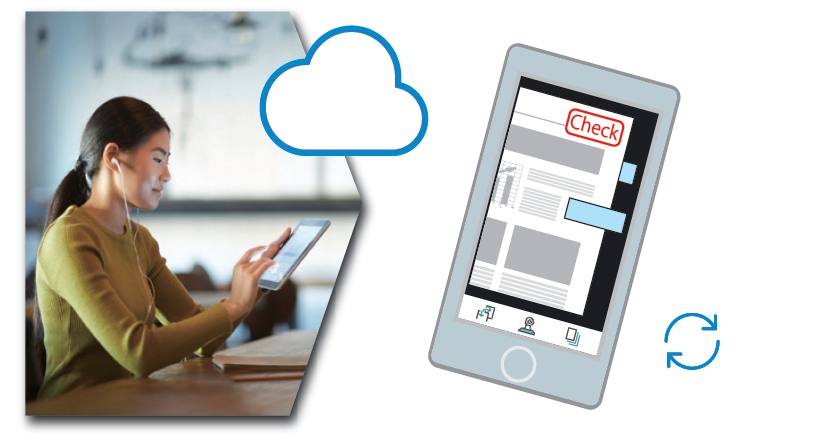
View, search, and perform simple edits on documents stored in the cloud directly from your mobile device. Even when you are away from the office, you can work just as naturally as if you were at your desk.View and edit in a web browser*3
DocuWorks documents shared in the cloud can be viewed and edited in a web browser with sticky notes, stamps and annotations.
*1 Supported services: OneDrive for Business and SharePoint Online under Microsoft 365 Business or Enterprise plans. A DocuWorks subscription or a DocuWorks Cloud Connect contract is required. Please refer to the official website for the latest supported operating environments.
*2 Supported services: Microsoft OneDrive, OneDrive for Business and SharePoint Online under Microsoft 365 Business or Enterprise plans.
*3 Supported services: Microsoft Teams, OneDrive for Business, and SharePoint Online under Microsoft 365 Business or Enterprise plans. The DocuWorks Viewer Light browser extension must be enabled in Google Chrome or Microsoft Edge. Whether editing is available depends on the document permissions, storage location, and contract conditions. Viewing and editing may become unavailable due to specification changes in third-party services.
Cloud linkage
Also links with general cloud services
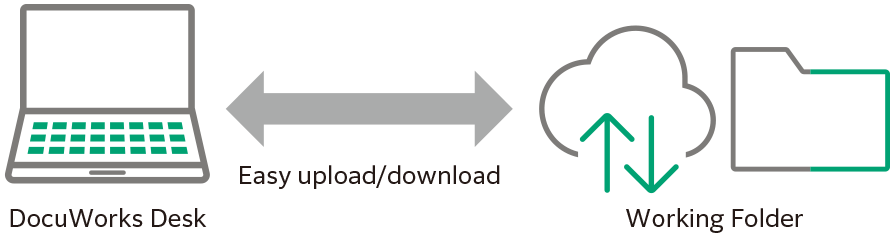
DocuWorks Cloud Connect also links with multiple cloud services such as Box Business and OneDrive for business. Upload/download documents from DocuWorks Desk by drag and drop or browse documents in the cloud.
* DocuWorks Cloud Connect is available free of charge for the first year. From the second year onwards, a separate contract is required. Please check the official website for the latest information on supported cloud services.
Also links with general cloud services
DocuWorks Cloud Connect*9 also links with multiple cloud services such as Box Business and OneDrive for business. Upload/download documents from DocuWorks Desk by drag and drop or browse documents in the cloud.
*9 DocuWorks Cloud Connect is available free of charge for the first year. From the second year onwards, a separate contract is required. Please check the official website for the latest information on supported cloud services.
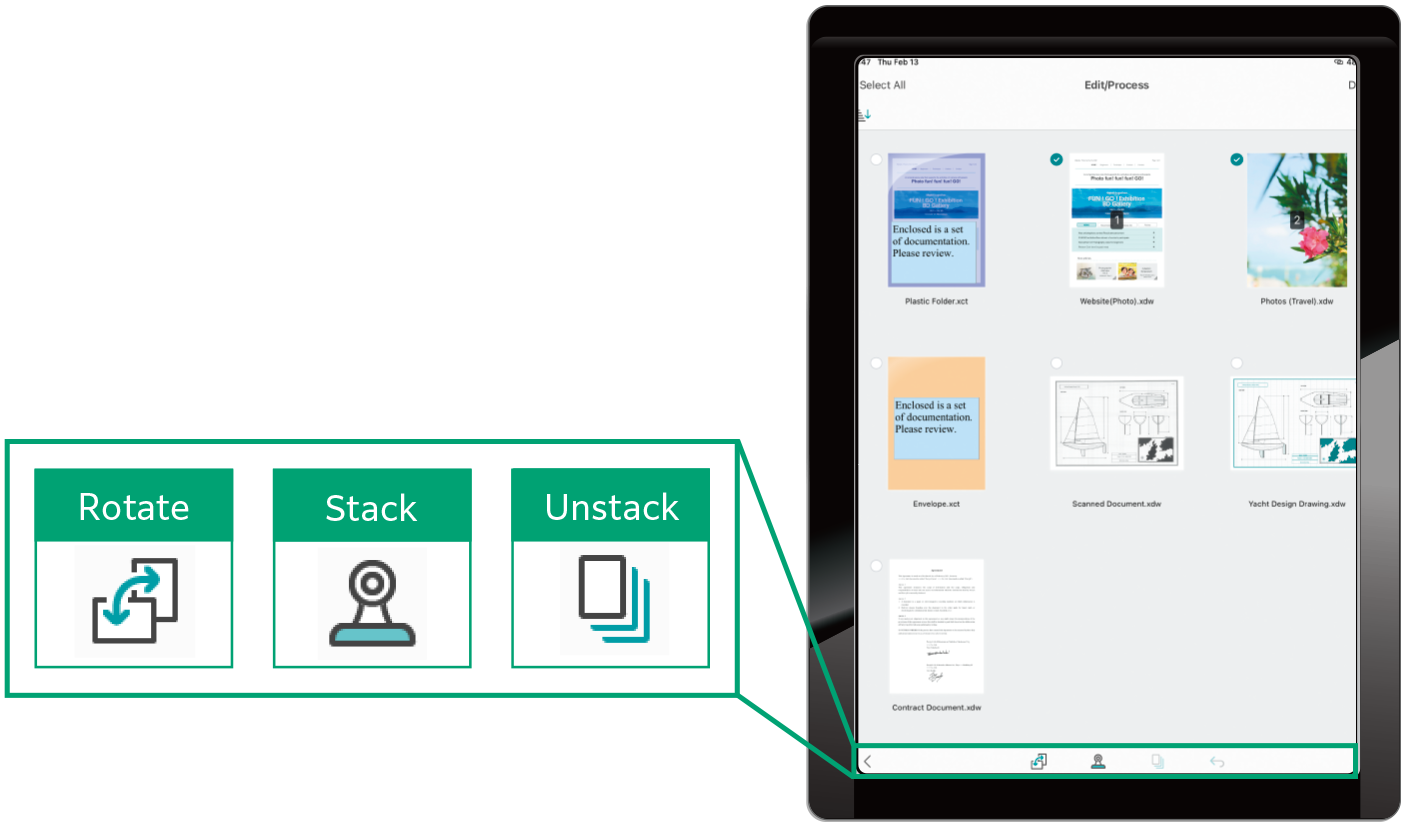
Versatile document editing even on mobile devices
Now you can edit DocuWorks documents with ease and rotate, stack, unstack, etc. at the touch of a button, even from a mobile device. This allows handling of electronic paper with greater freedom, just as if you were working at a desk.
Note: Supported devices: iPadOS / iOS / Android devices. Requires purchase of DocuWorks 10 package version or DocuWorks subscription contract.
Multifunction Device Linkage makes standard tasks for scanning documents and receiving fax documents easier
By linking with FUJIFILM Business Innovation add-on applications, routine scanning work and digitisation or sorting work of received fax documents are automated. This makes operations more efficient.
Linkage with Scan Delivery
By simply selecting a task name or document type, tasks such as adding a file name/attributes, file conversion and image processing are carried out in accordance with set rules, and documents are automatically sorted depending on their type and date. Routine scans are streamlined.
Linkage with Paperless Fax Delivery
Fax documents received on a multifunction device are sorted/assigned attributes based on the fax number and date received, and are then digitised and automatically sorted. Paperless fax operations that meet your needs, such as the ability to support a schedule function, are also possible.
With Working Folder, you can share documents while on the go.
*10 Chargeable. For details, please check with your FUJIFILM Business Innovation sales representative.